How to delete or deactivate an Instagram account?
Find out in this article how delete or deactivate your Instagram account permanently.
When it comes to social networks, Instagram is a juggernaut, if not the most used.
With features like Stories, Lives, and more, Instagram is easily one of the best social platforms around.
But, like all good things, there are times when it must come to an end.
Whether you simply need a break from this digital world or are looking to completely eliminate social media, this article will teach you everything you need to know how to deactivate and delete your Instagram account.
Remember that once you delete your account, this action can no longer be undone.
All your photos and your Insta account history, including followers, likes and comments, will be permanently deleted and you will no longer be able to register under the same username if you create another account.
If you’ve already tried temporarily deactivating your Instagram account but want to take more drastic measures, it’s relatively easy to do so.
Just remember that the Deletion of your account is permanent and cannot be undone.
To delete your Instagram account, follow these steps:
- Open a web or mobile browser
- Go to the Instagram account deletion page
- Select an option when asked why you want to delete your account
- Enter your password again and validate

Can I recover my data after deleting my Instagram account?
Once your Instagram profile is deleted, you will not be able to restore it or recover data on it.
So be sure to retrieve the data that interests you before deleting your account.
It is not possible to delete an Instagram account without having its password.
Indeed, this would otherwise allow anyone to delete an Instagram account.
However, if an Instagram account does not comply with the platform’s terms of use, you can report and it may be deleted by the moderators.
You may also like: Instagram feed everything you need to know
Deactivate your Instagram account
As the deleting your Instagram account East permanent and definitiveInstagram recommends temporarily deactivating your account first.
If you do this, you can still recover the account and all your content.
There deactivation of your Instagram account is an easy way to take a break from social media or decide if you really want to delete your Instagram account.
Temporarily deactivating your Instagram account is a simple process.
However, you cannot do this in the Instagram app. You need to log in to your account on your web browser via computer, so make sure you have all your correct login details ready.
To deactivate your Instagram account follow the following steps:
- Go to Instagram.com on your computer
- Sign into your account
- Click on your profile photo at the top right then click on settings
- Make sure you are in the “Edit Profile” tab
- Click on the “Temporarily deactivate my account” link
- Follow the steps and validate your choice
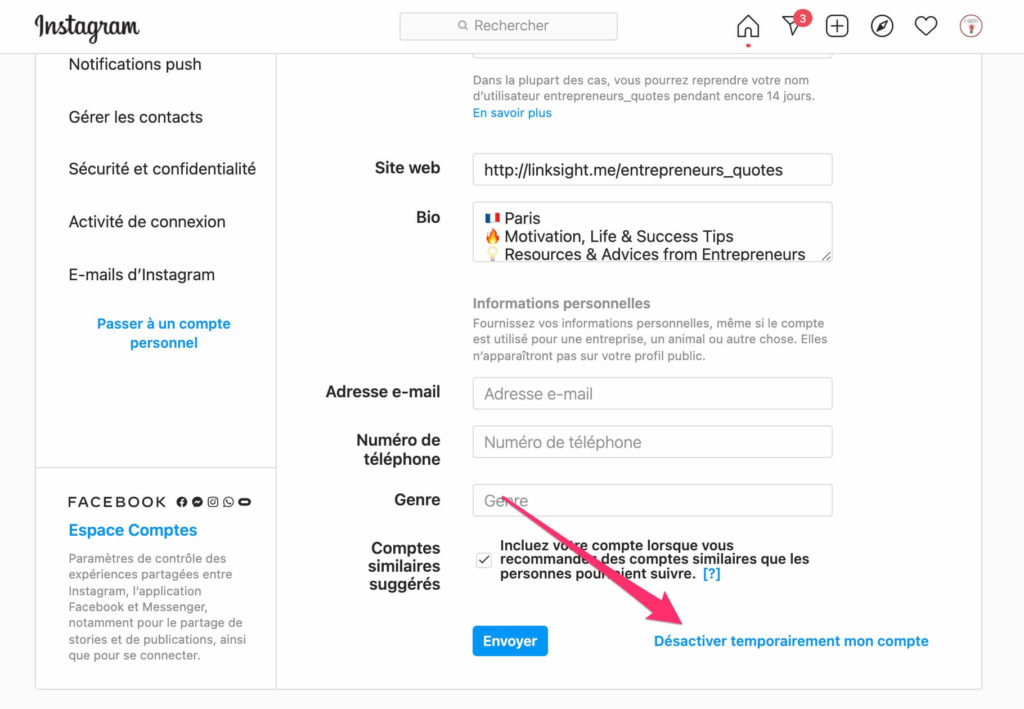
By carrying out this process, no one will be able to visit your Instagram profile until you reactivate it.
How long can you deactivate your Instagram account?
You can keep your account temporarily disabled as long as you want. You can reactivate it at any time by logging in again. However, there is a restriction.
Instagram currently only allows you to deactivate your account once a week.
So if you turn it off, log in again, and then decide to turn it off again, you’ll have to wait a week to do so.
Good to know : you will not lose followers by deactivating your account. Your profile will simply disappear from the platform by disappearing from the list of subscriptions of your followers.
You may also like: how to share an Instagram story?
If you don’t want to deactivate or delete your Instagram account, you can always do so remove from the app.
However, if you want to continue using the Instagram app, you will need to add another Instagram account or create a new one.
For disconnect an Instagram account of the application follow these steps:
- Open Instagram on your Smartphone
- Go to your Instagram feed
- Open the menu on the right
- Click Settings
- Scroll down and click “Log out of XXX” XXX being your account name

You can also log out of all your accounts in one click by clicking on “Log out of all accounts.”
You may also like: Everything you need to know about Instagram writing