
How to recover a deleted website?
If you have a website, you may be faced with some very tricky issues at some point. One of these is its deletion. This can happen as a result of improper handling or a malware attack.
Faced with such a situation, it is legitimate to want to proceed with recovery. It is not always an easy exercise, but when you know the steps to follow, there is no reason why you cannot succeed. You can find in this article three different methods to achieve this.
Identify the cause of website deletion
The first step to recovering a deleted website is to understand why it was deleted in the first place. The reasons can vary, such as:
- Human error while handling the website or associated files
- Technical problems with your host
- Domain Name Expiration
- Hacking or malicious deletion by third parties
Determining the exact cause will help you choose the best solution to quickly restore your website.
Restore your site from a backup
This method is valid in case you have canceled your hosting account before the expiration date. To restore your deleted website using a backup, the procedure is relatively simple. It consists of first recreating your old account, then importing the file backup made from the “website import” section or via an FTP client.
Next, you need to move all the files to the public_html folder. In the following, we will recreate the database in the “MySQL database” section and import your database backup through phpMyAdmin.
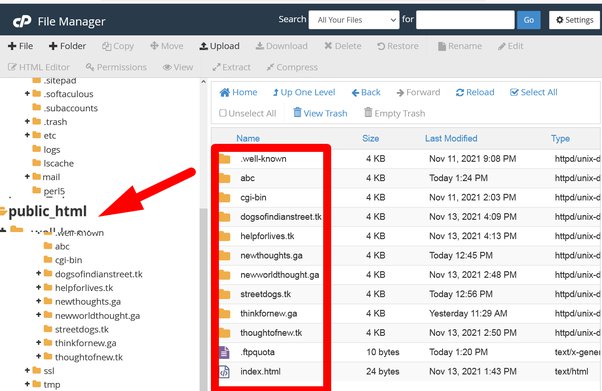
Finally, it is recommended to check your web application configuration file and make sure it matches the details in the previously mentioned “MySQL Database” section. Moreover, it should also match MySQL Host, MySQL Database, MySQL User and Database Password.
Retrieve your pages from cache
Google Cache is one of the tools from which you can recover your deleted website. It is indeed the only caching service that offers a display of working links, as well as functional pages as the real version of your deleted website. It works almost the same as Bing cache, which plays the same role. So, you can use them to recover your website.
Here’s how to check:
- Do a Google search for “site:yourdomain.com” (replace “yourdomain.com” with your site address.
- If pages are still indexed by Google, review the search results to find URLs or information belonging to your deleted website.
- Click the small triangle next to each URL in the search results, then choose the “Cached” option to view content archived by Google.
- Copy and save all relevant information to rebuild your website.
Restore your site with Wayback Machine
The third method usually allows you to recover old pages using the Wayback Machine archives. To restore using this method, there are two steps to follow:
Step One: Search the Archives
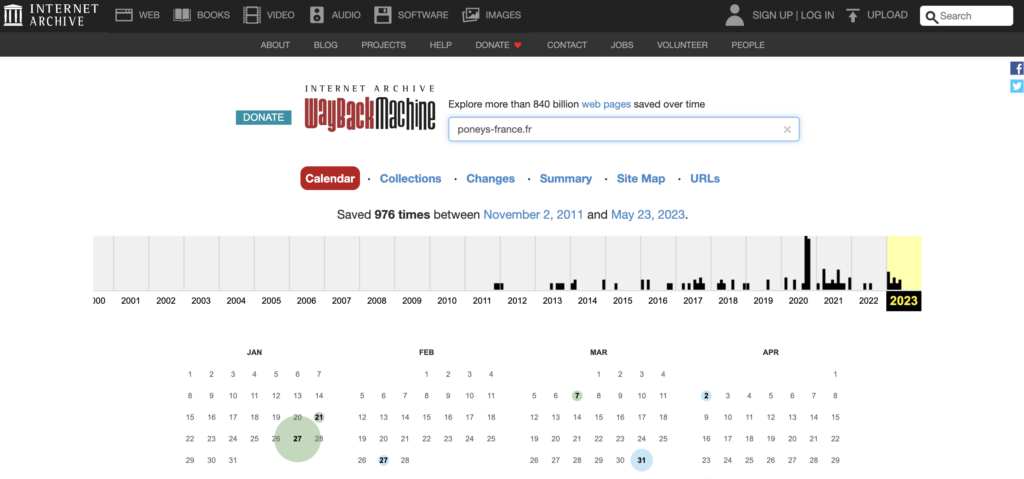
First, you need to go to the site https://archive.org/web. Then, you need to enter the address of your deleted site in the search section and once it appears, click on “browse history”. There, you should see a list that will tell you how many times the platform has been backed up in a given period. You can also see a calendar on which you can choose the dates that interest you. Afterwards, you need to browse the site to see if there is still content available.
Step Two: Copy the Content Manually
Here, you first need to navigate to each page of the website and then copy and paste the text content into a text editor (Google Docs, Microsoft Word, etc.). After that, you will need to right-click and save all the images you want to recover to a computer folder.
To some extent, it is also possible to recover some of the website code. To do this, you need to right-click again and press View Source to access the website code. You can save it for later use. Finally, once you have recovered the site by one of these means, you should quickly change your password.

Passionate about the web and entrepreneurship, I founded Digitiz in 2016. My goal is to share my experience with you and save you time in choosing your tools.
Similar articles